Carts, live
Everything posted in the #paniers channel, on one page: the seats still available, their category, the total to pay, and how long before they're released.
- ⏱️ A countdown on every cart, to the second.
- 🔎 Your filters: event, category, price, seats together.
- 🎟️ One click reserves the cart and opens your ticket, right here: the team answers you there.
- 📦 Your orders, what's left to pay, your receipts and a CSV export.
- 📲 Add it to your home screen: new carts notify your phone, even outside Discord.
Server members only. Nothing is posted on your behalf: we read your username, and that's it.
Live carts
No carts match these filters.
My ticket
No open ticket. Reserve a cart: its ticket opens here.
My orders
🧾 Receipts & history
Get notified
What you tick here reaches you on your devices, even if you never open Discord — and it applies to your alerts on the server too.
📲 Notifications on this device
Even with the page closed and without the extension — on your phone as on your computer.
📲 Put this page on your phone
Added to your home screen, it becomes an app with its own icon and notifies you of new carts with everything closed. On iPhone it's the only way: Apple only sends web notifications to a page added to the home screen.
✅ Installed on this device. Your notifications switch on just above.
- Open this page in Safari. From Discord or Chrome: tap ⋯ or the compass icon → Open in Safari.
- Tap Share — the square with an arrow pointing up, at the bottom of the screen.
- Scroll down that list and tap Add to Home Screen, then Add.
- Close Safari, and open Eventure from your home screen. This step matters: notifications can only be switched on from the icon, never from a Safari tab.
- Here in My alerts, tick what you want, tap Turn on, then Allow.
Keep the icon: deleting it switches your notifications off. Needs iOS 16.4 or later. A cart alert is only kept for five minutes — a phone that's off during those five minutes never gets it.
- Open this page in Chrome.
- Tap the ⋮ menu, top right.
- Tap Add to Home screen (or Install app), then confirm with Install.
- Open Eventure from your home screen.
- Here in My alerts, tick what you want, tap Turn on, then allow notifications.
On Android, notifications also work from a plain Chrome tab — installing just gives you the icon and keeps you logged in. Check that notifications aren't blocked for this site in Chrome's settings.
- In Chrome or Edge, click the install icon in the address bar (a small screen with an arrow), or open the ⋮ menu and look for Install page as app. The exact wording changes from one version to the next.
- Open Eventure from your taskbar or your dock.
- Here in My alerts, tick what you want, tap Turn on, then allow notifications.
On a computer, notifications work from an ordinary tab as well — the app only keeps the page one click away. On Safari for Mac: File → Add to Dock.
🔔 What you get notified about
Your account was created for you by the team, so you don't have the server's event roles. Instead, you're notified about every cart — and only about what you follow as soon as you add a keyword below.
Event alerts
You're mentioned in the channel — and notified on your devices — as soon as a cart matches. cart covers every cart; the other roles only their own artist or ticketing site.
Keyword alerts
A direct message, only for what you follow. Separate with
commas: celine, psg, jul.
My checkout profiles
The ticketing account and card the bot uses to pay for you when you take a cart. Save them ahead of time: during a drop, every second counts.
Create a profile
Encrypted as soon as it's saved. The password and full card number are never shown again.
My profiles
The Eventure extension
With the extension, your cart link opens the cart right in your browser, and you pay on the ticketing site yourself. New-cart alerts come from this page — turn them on under “My alerts”.
The file
eventure-extension.zip — download it again when a new version is announced.
Install, step by step
- Download the file with the button above.
- Unzip it (double-click the .zip) and keep the resulting folder somewhere it will stay, such as Documents. Deleting this folder removes the extension.
- In Chrome's address bar, type
chrome://extensionsand press Enter. On Edge:edge://extensions— on Brave:brave://extensions. - In the top right corner, turn on Developer mode.
- Click Load unpacked and select the unzipped folder.
- “Eventure” shows up in the list: it's installed. Pin it with the 🧩 icon in the toolbar to keep it handy.
- Stay logged in to this page in Chrome: that's what lets your cart links open on their own. Click its icon to check which version you are running.
Updating: download the file again, replace the
folder's content, then click ↻ under Eventure in chrome://extensions.
- Install Orion Browser by Kagi from the App Store (free). Safari and Chrome on iPhone don't support this extension.
- Open this page in Orion: copy its address, paste it into Orion, and log in with Discord.
- Tap Download the extension. When the file shows up, tap
Share ⇧ → Save to Files.
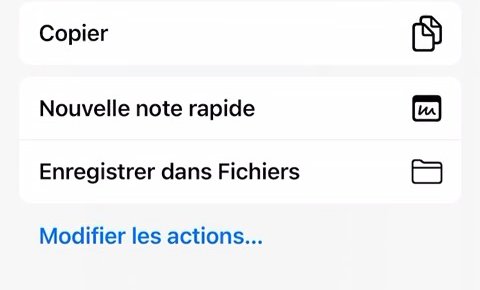
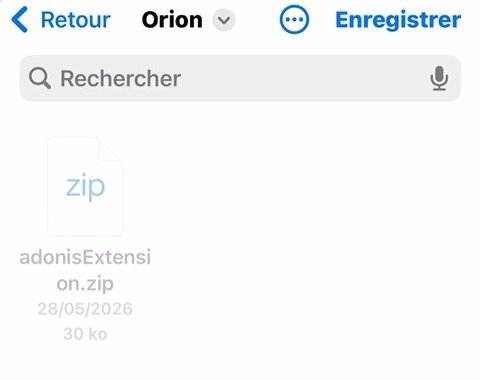
- At the top, pick the Orion folder, then tap Save.
That folder is what matters: saved anywhere else, Orion can't find the extension — and says nothing.
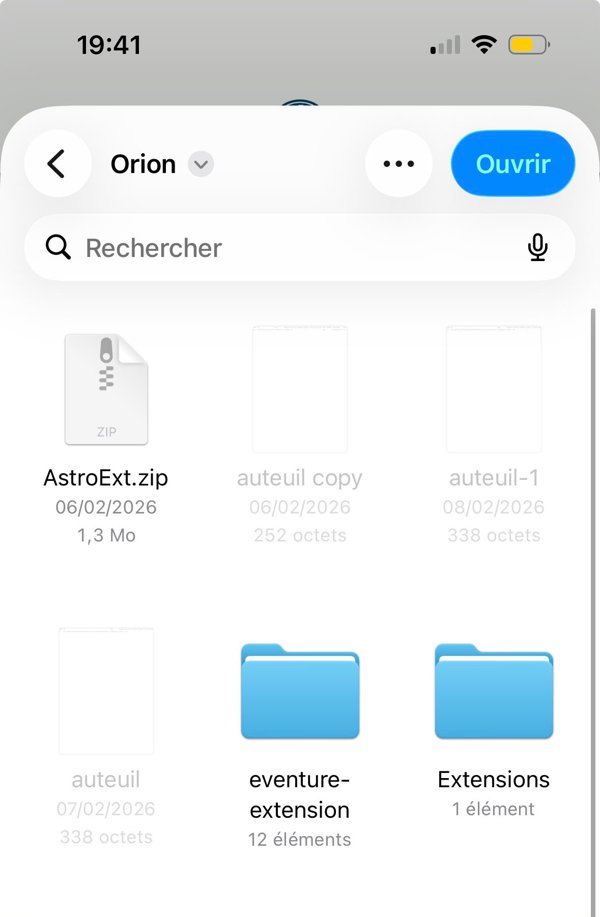
- Open the Files app → On My iPhone → Orion, and tap
eventure-extension.zip once: an eventure-extension folder appears next to it.
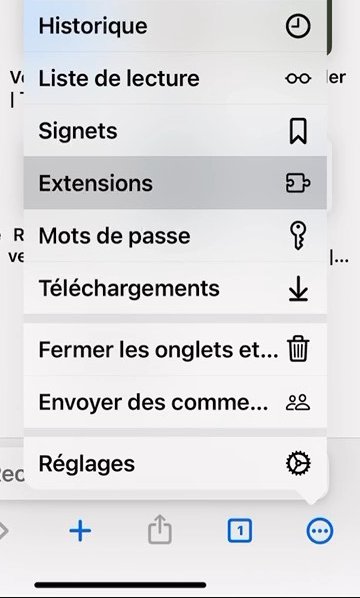
- In Orion, tap ⋯ at the bottom right → Extensions.
- Tap + at the bottom right → Install from file.
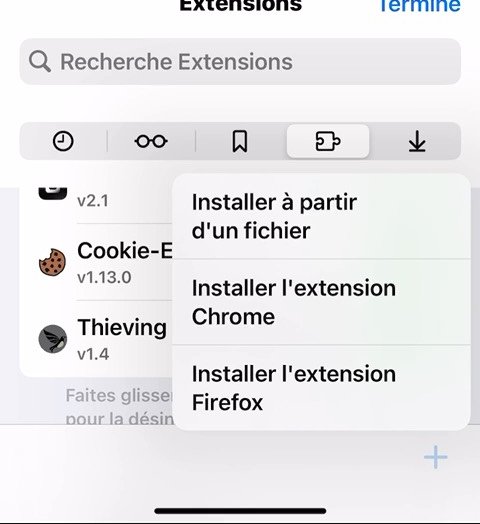
- Go to Orion, open the eventure-extension folder (not the .zip),
then tap Open at the top right.
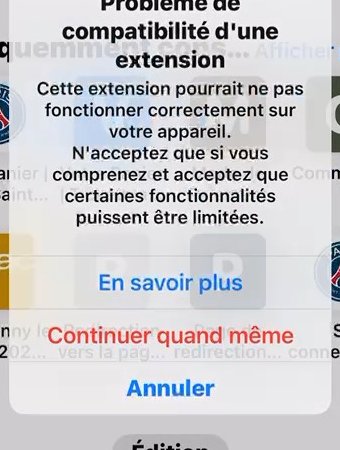
- Orion warns about an “Extension compatibility issue”: tap
Continue anyway, then Add.
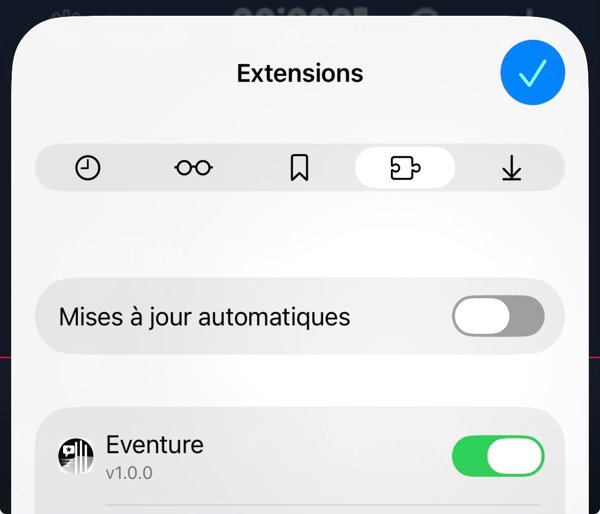
- Eventure shows up in the list with its switch on: you're set. From now on,
open your cart links in Orion.
From Discord: long-press the link → Copy, then paste it into Orion.
Updating: remove the extension in Orion, delete the old .zip and the old folder from the Orion folder in Files, then start again from step 3. No cart notifications on iPhone: iOS puts the browser to sleep in the background.
Chrome on Android doesn't support extensions. Having trouble, or can't use the extension? The live session link in your ticket works everywhere, and the staff will answer you in that ticket.